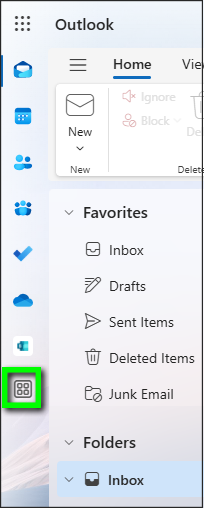
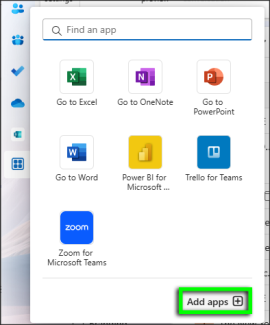
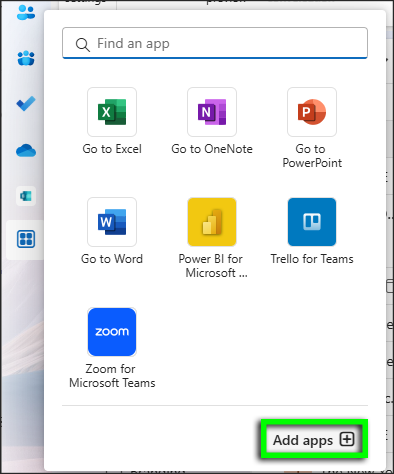
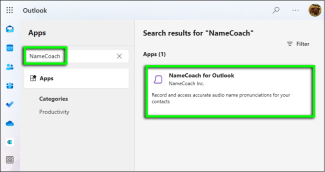
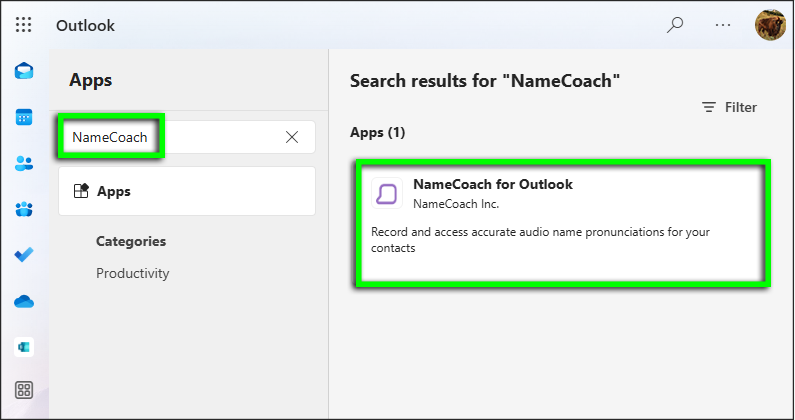
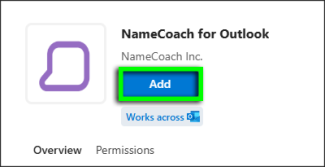
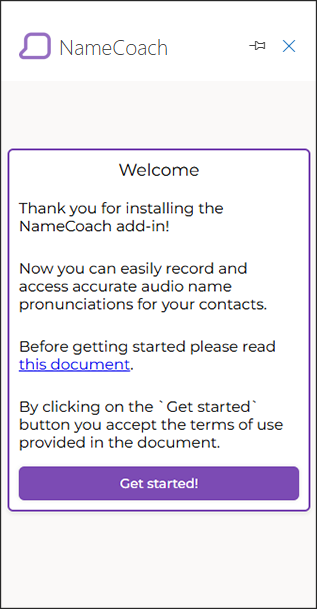
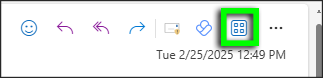
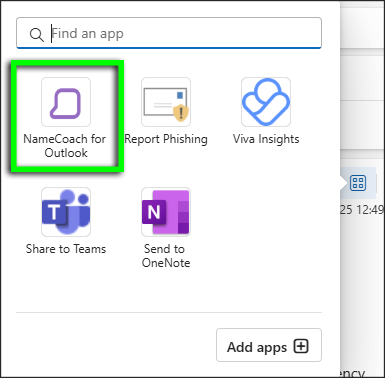
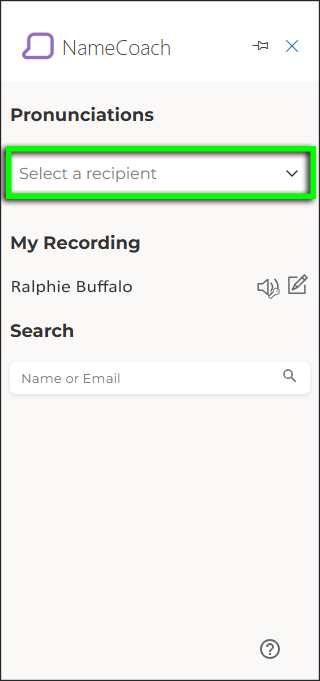
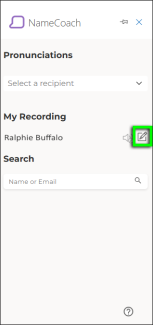
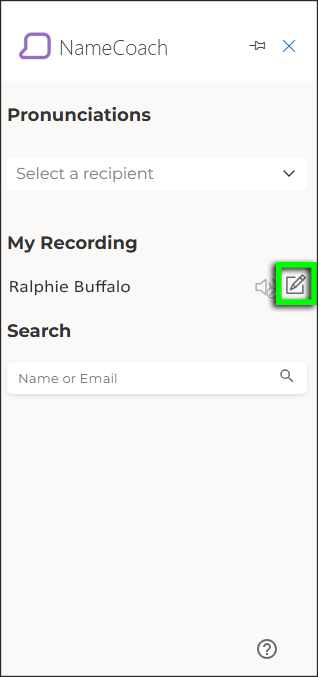
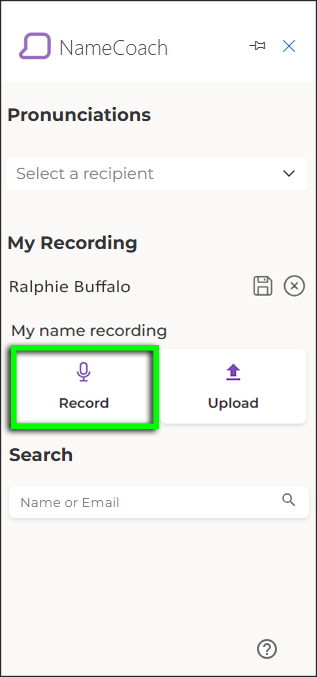
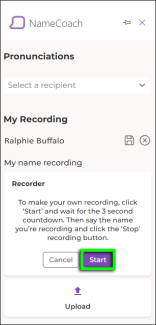
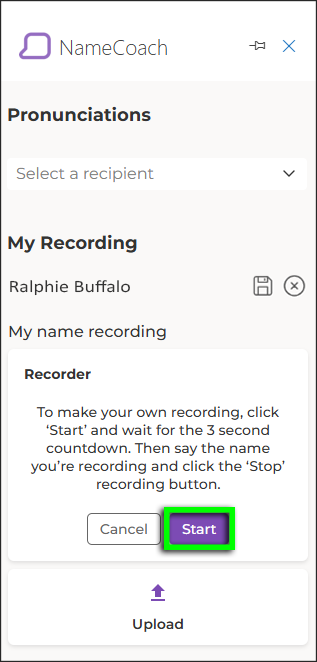
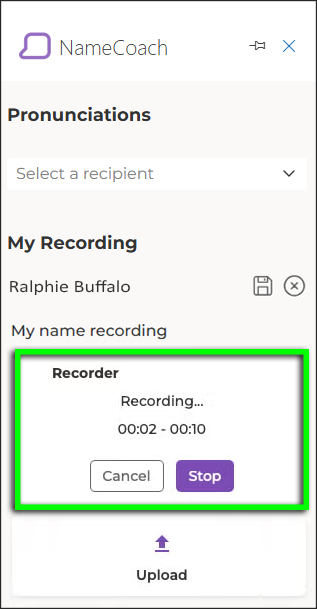
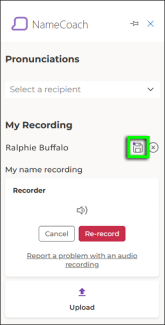
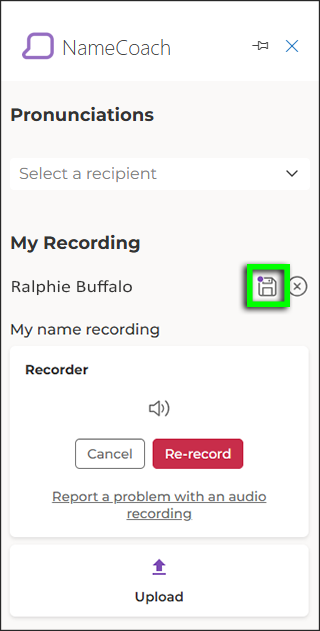
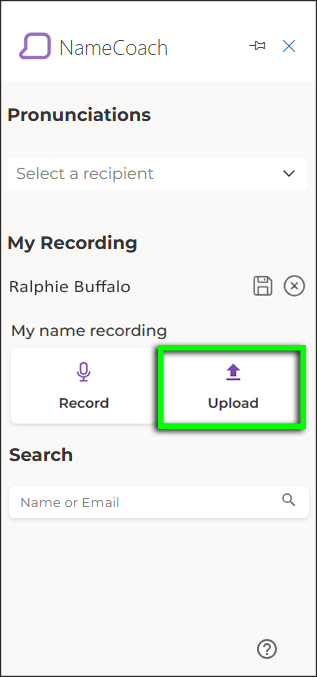
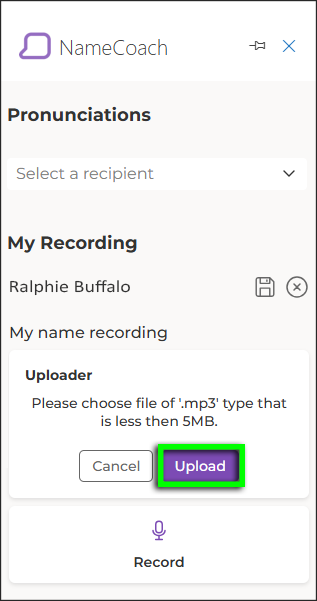
Microsoft 365 - Outlook Step 1 Add the NameCoach AppIn Outlook, go to the app bar on the left and click the More apps icon. Step 2 Click Add apps. Step 3 Type NameCoach in the search bar. In the search results, click to open the NameCoach for Outlook tile. Step 4 Click Add. Step 5 A NameCoach tab will open upon installation. Step 6 Use NameCoach in OutlookOpen an email, then click the Apps icon in the message's action bar.Please note: In Outlook for desktop, the NameCoach add-in appears in the Outlook ribbon. Step 7 Select NameCoach for Outlook. Step 8 In the NameCoach panel, select a name to hear it pronounced. Step 9 To add a recording of your own name, click the Edit My Recording icon. Step 10 To record your name now, click Record.To upload a pre-recorded MP3 file, jump to step 14. Step 11 Click Start. Step 12 Record your name and click Stop when finished.Please note: You have up to 10 seconds to record your name. Step 13 Click the sound icon to listen to your recording. If satisfied, click the Save icon. Step 14 If you'd prefer to upload a pre-recorded MP3 file, click Upload. Step 15 To locate and upload the file, click Upload.