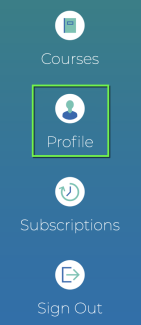
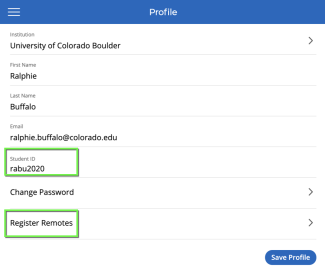
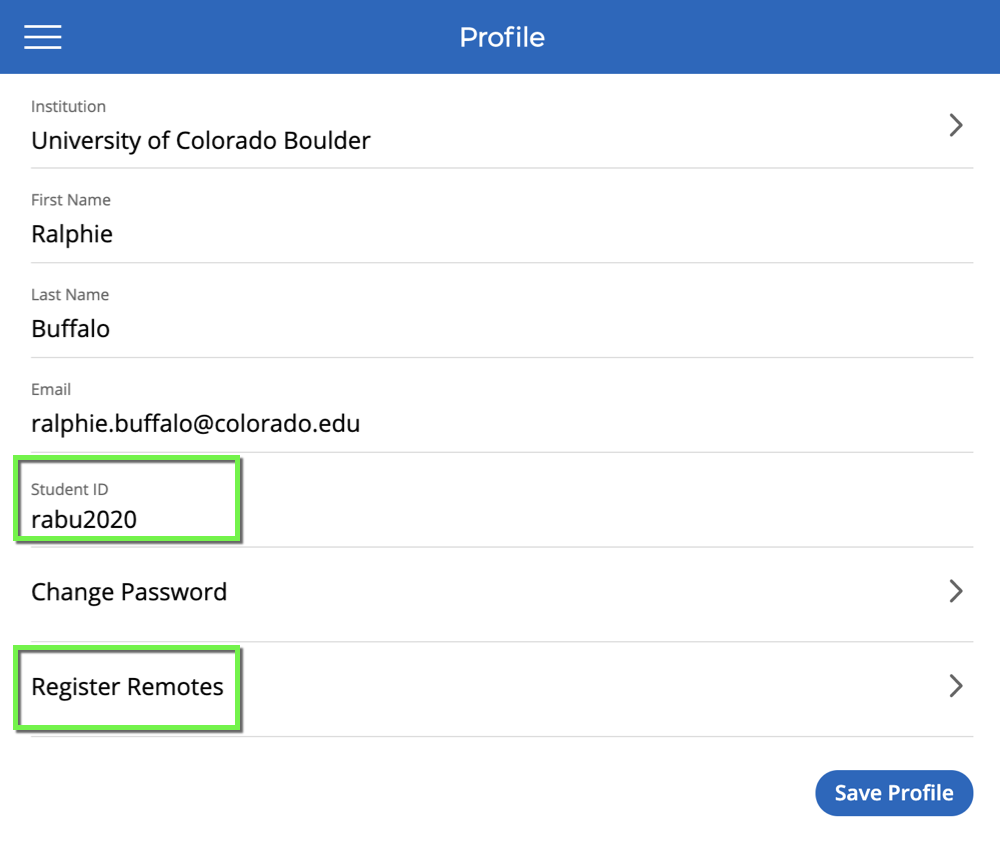
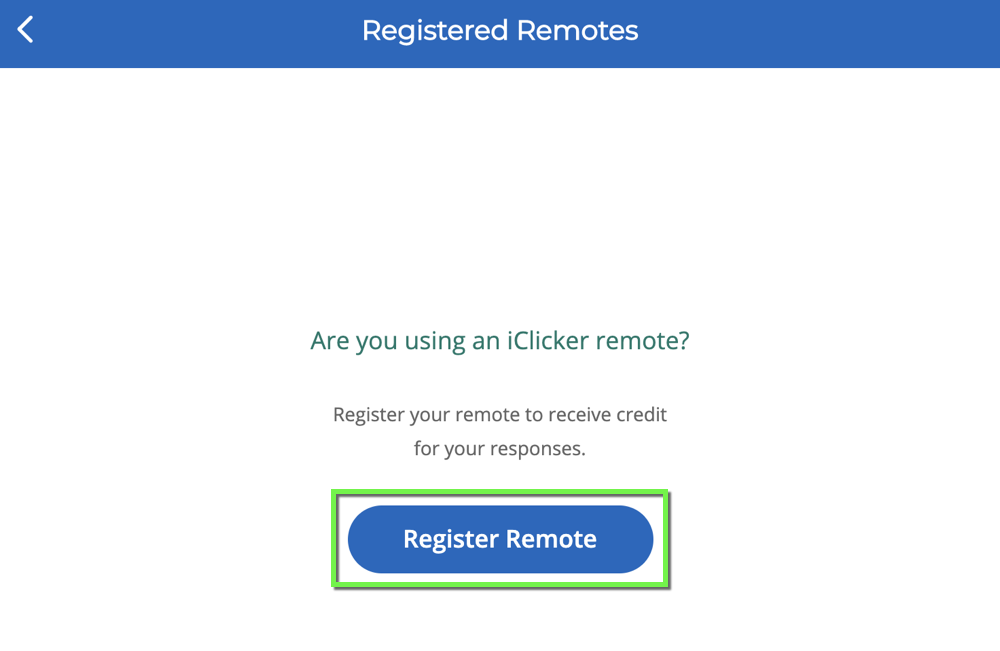
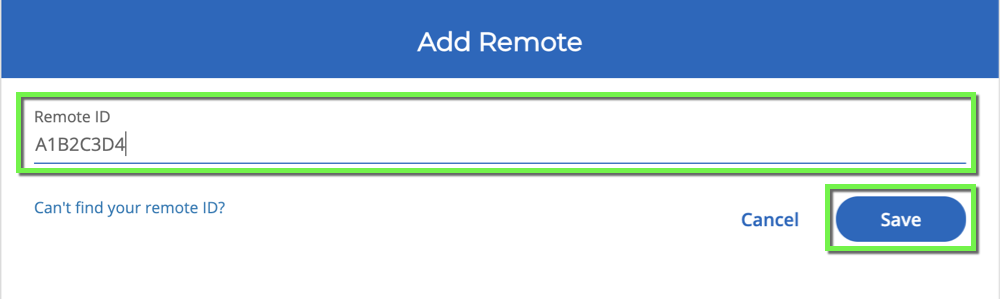
Step 1
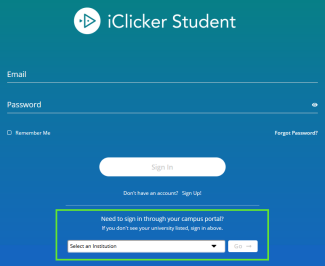
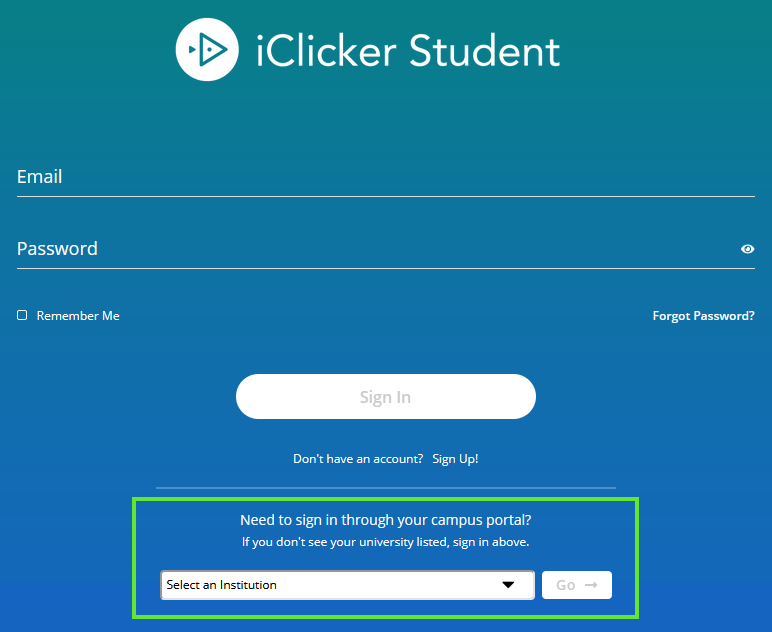
For step-by-step login instructions or to set up your iClicker account for the first time, visit the Set up your iClicker student account tutorial.

For step-by-step login instructions or to set up your iClicker account for the first time, visit the Set up your iClicker student account tutorial.