Step 1
Sign in to Outlook on the web with your IdentiKeyUsername@colorado.edu email address and IdentiKey password.

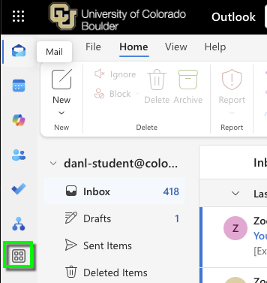

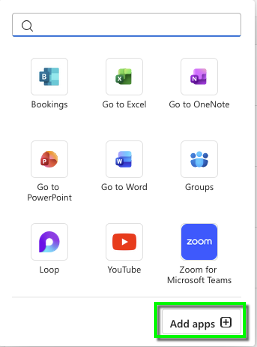

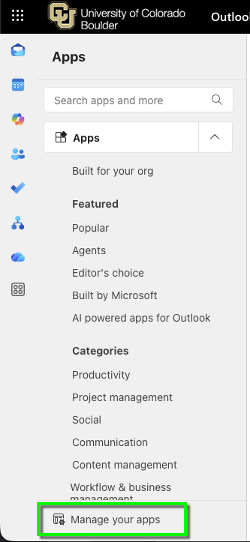
Step 5

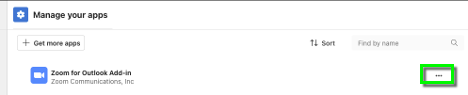

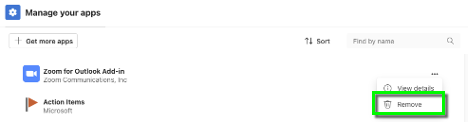
Step 7
Close out of Outlook desktop application and relaunch Outlook to complete the uninstall.

Sign in to Outlook on the web with your IdentiKeyUsername@colorado.edu email address and IdentiKey password.
Close out of Outlook desktop application and relaunch Outlook to complete the uninstall.